Config
The Config tab (F1) is where you define forwarders, control logging,
manage the embedded MCP server, and save your work as a project. Nothing is
proxied until you start a forwarder here.

Forwarders
The top of the tab is a table of forwarders. Each row shows whether it is enabled, its name, type, listen address, upstream address, TLS status, and running status.
| Button | Action |
|---|---|
| + Add | Create a new forwarder |
| ✎ Edit | Edit the selected forwarder (disabled while it is running) |
| ✕ Delete | Remove the selected forwarder (asks for confirmation) |
| ⏻ On / Off | Start or stop the selected forwarder |
Multiple forwarders can run at once, each proxying a different target — and they can mix transports (one TCP, one UDP, one SOCKS5).
Editing a forwarder
Edit (or Add) opens the forwarder modal. The form adapts to the Type you choose:
| Field | Notes |
|---|---|
| Name | Human-readable label shown across the UI. |
| Enabled | Whether "Start All" includes this forwarder. |
| Type | TCP, UDP, or SOCKS5 (see below). |
| Listen Host / Port | The address your client connects to. The host is a dropdown of available interfaces. |
| Upstream Host / Port | The real server. TCP/UDP only — SOCKS5 discovers the target from each client's handshake. |
| Connect timeout | How long to wait for the upstream connection. |
| Read buffer size | Bytes read per socket read. |
| Max sessions | Concurrency cap (0 = unlimited). |
| Half-open timeout | Seconds an idle half-open session may sit before its surviving connection is reaped (0 = off). TCP/SOCKS5 only. |
| Framer | How the byte stream is cut into frames — raw, delimiter, length_prefix, or a custom script. Configured via the framer sub-modal. See Framers. |
| Protocol definition | Path to a YAML/JSON file for decoding frames into named fields. See Protocol Definitions. |
| TLS | TLS termination on the client side and/or TLS to the upstream — see below. |
| Log level | Optional per-forwarder override of the global log level. |
Transport types
- TCP — a plain stream proxy. Supports any framer and TLS.
- UDP — one session per
(client host, client port)flow. Always uses therawframer (one datagram = one frame); the framer selector and TLS-listen option are disabled. UDP has no half-close. - SOCKS5 — the upstream target is discovered from each client's CONNECT request, so the upstream host/port fields are hidden. The form shows optional username/password fields instead; leave them blank to advertise no-auth.
Half-open sessions (TCP / SOCKS5)
When one peer disconnects, ProtoPoke does not immediately tear down the
other side. The session moves to only server or only client and the
surviving connection stays open, so you can keep driving it from the
Forge tab. The session only reaches closed once both sides are
gone. This is on by default; the legacy TCP half-close behaviour can be
restored per-forwarder.
A half-open connection whose surviving peer uses keep-alive may never close on
its own, leaking its sockets indefinitely. The Half-open timeout field
guards against this: once a session is half-open, its surviving connection is
reaped after that many seconds with no traffic. Active connections and Forge
traffic reset the timer. It defaults to 0 (no reaping) — set a positive
value for long-running, unattended forwarders.
TLS
ProtoPoke can terminate TLS on the client side and optionally re-encrypt to the upstream:
- TLS Listen — terminate TLS coming from the client. On first use
ProtoPoke generates a root CA at
~/.protopoke/ca.crt/ca.keyand signs a per-session certificate from it. The client must trust that CA for the handshake to succeed — export~/.protopoke/ca.crtand install it in the client's trust store. You can also point the forwarder at your own CA cert/key, or supply a fixed leaf cert/key directly. - TLS Upstream — connect to the real server over TLS. Upstream certificate verification is intentionally disabled — ProtoPoke is a reverse-engineering tool, not a production proxy.
TLS Listen is not available for UDP (no DTLS) or SOCKS5 forwarders.
Logging
A log level dropdown on the Config tab (DEBUG / INFO / WARNING /
ERROR) sets the global logging level for all forwarders. A forwarder can
override it in its own edit form.
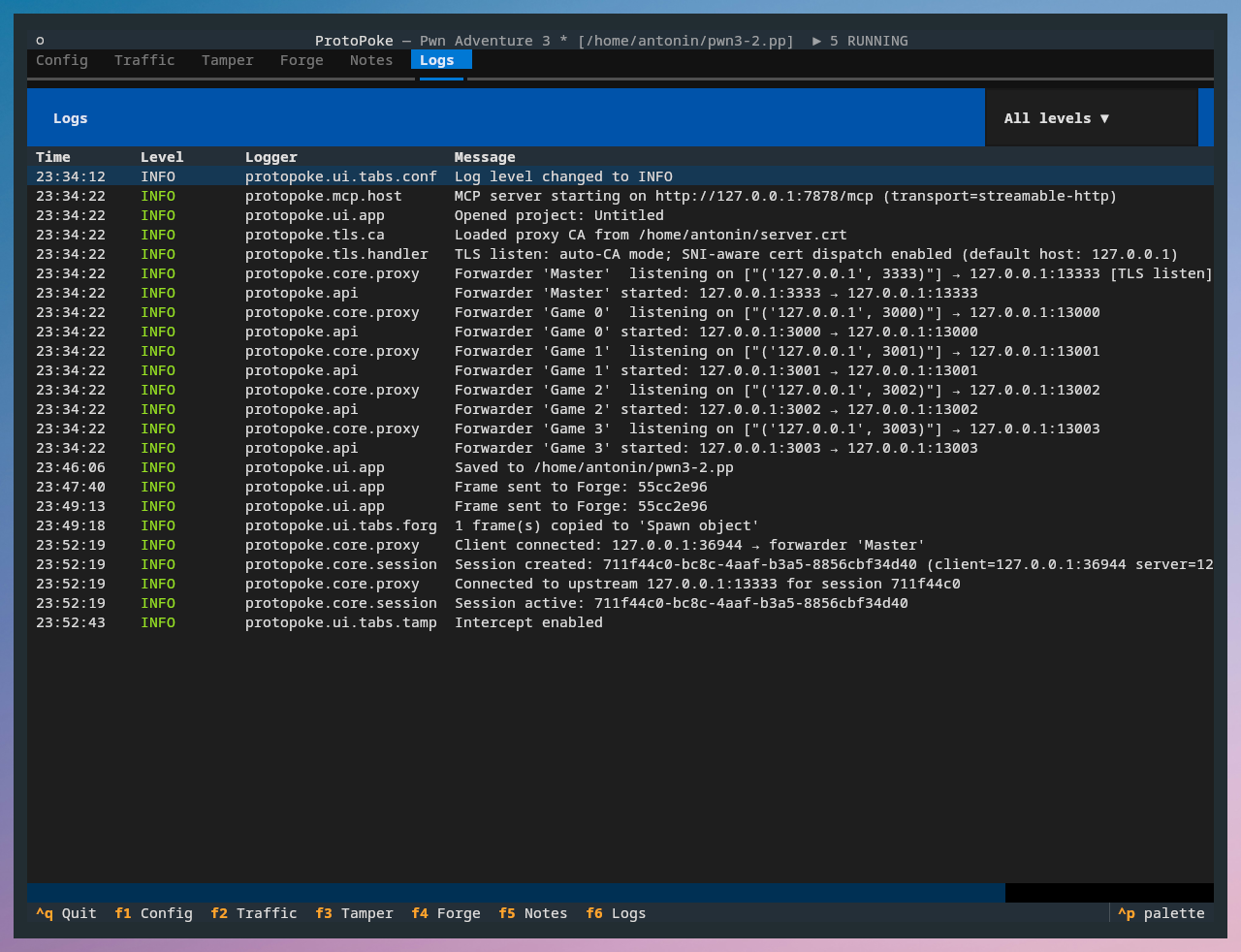
Log output itself is shown on the Logs tab (F6): a table of timestamp,
level, logger name, and message, colour-coded by severity, with a level
filter dropdown. Use DEBUG while reverse engineering a protocol, then dial
it back once things work.
MCP server
Below the forwarder table is the MCP section. Toggle it on to start the
embedded MCP server, which exposes ProtoPoke's operations as AI tools bound
to the same state the UI shows. Configure host/port here, and click the
? button for a help modal that shows the connection URL and explains the
Profile selector. That selector chooses the tool surface exposed to the
AI — Full (everything) or Analysis (the reverse-engineering subset, which
lowers per-turn token cost); changing it restarts the embedded server. See
MCP Server.
Projects
A project bundles your whole working set into a single .pp file (a ZIP
archive) so you can save and reopen it later.
| Action | Shortcut |
|---|---|
| Open project | Ctrl+O |
| Save project | Ctrl+S |
| Save as… | Alt+S |
The app starts with a blank Untitled project. The project name is set (and
can be edited) in the Save dialog: the first save — Ctrl+S on a fresh project,
or Alt+S — opens a dialog with a Project name field alongside the
destination path. Once saved, Ctrl+S writes silently back to the same file.
A .pp archive contains:
| Member | Contents |
|---|---|
project.json |
Metadata: name, timestamps |
forwarders.json |
All forwarder configurations |
rules.json |
Replace rules and intercept rules |
forge.json |
Playbooks, frames, and run history |
logs.json |
Captured sessions and frames (the Traffic tab) |
filters.json |
Frame display filters |
mcp.json |
Embedded MCP server settings (enabled, host, port, profile) |
Loading is bounded for safety (max 32 members, 100 MB per member).
Next
- Traffic — read captured traffic, choose framers and parsers
- Core Library — Config — the same, via
ForwarderConfig